How to Connect FireStick to TV and Pair the Remote
Setting up a new FireStick is quick and straightforward, even if you’ve never used one before. If you have just unboxed your device and need help connecting it to your TV or pairing the remote. This guide will walk you through every step. Once your FireStick is set up, you’ll be able to access your favorite streaming apps, movies, TV shows, and live content in just a few minutes.
Thank you for reading this post, don't forget to subscribe!Whether you’re replacing cable, upgrading your entertainment system, or using a FireStick for the first time. The setup process is designed to be beginner-friendly. In this guide, you’ll learn how to Connect FireStick to TV , pair the remote, troubleshoot common setup issues, and complete the initial configuration. So, you can start streaming without unnecessary delays.
Why is FireSticks the Best Streaming Device Today?
Before we jump into setup, let’s quickly understand why people are choosing Fire Stick. A Fire Stick turns any normal TV into a smart TV. You don’t need expensive subscriptions or multiple apps anymore. With the right setup and a reliable streaming subscription, you can access:
- Live TV channels
- Movies and series on demand
- Sports and international content
- HD and 4K streaming
That’s why learning how to connect FireStick to TV properly is important. It is your gateway to a complete entertainment system.
How to Connect FireStick to TV (Step-by-Step):
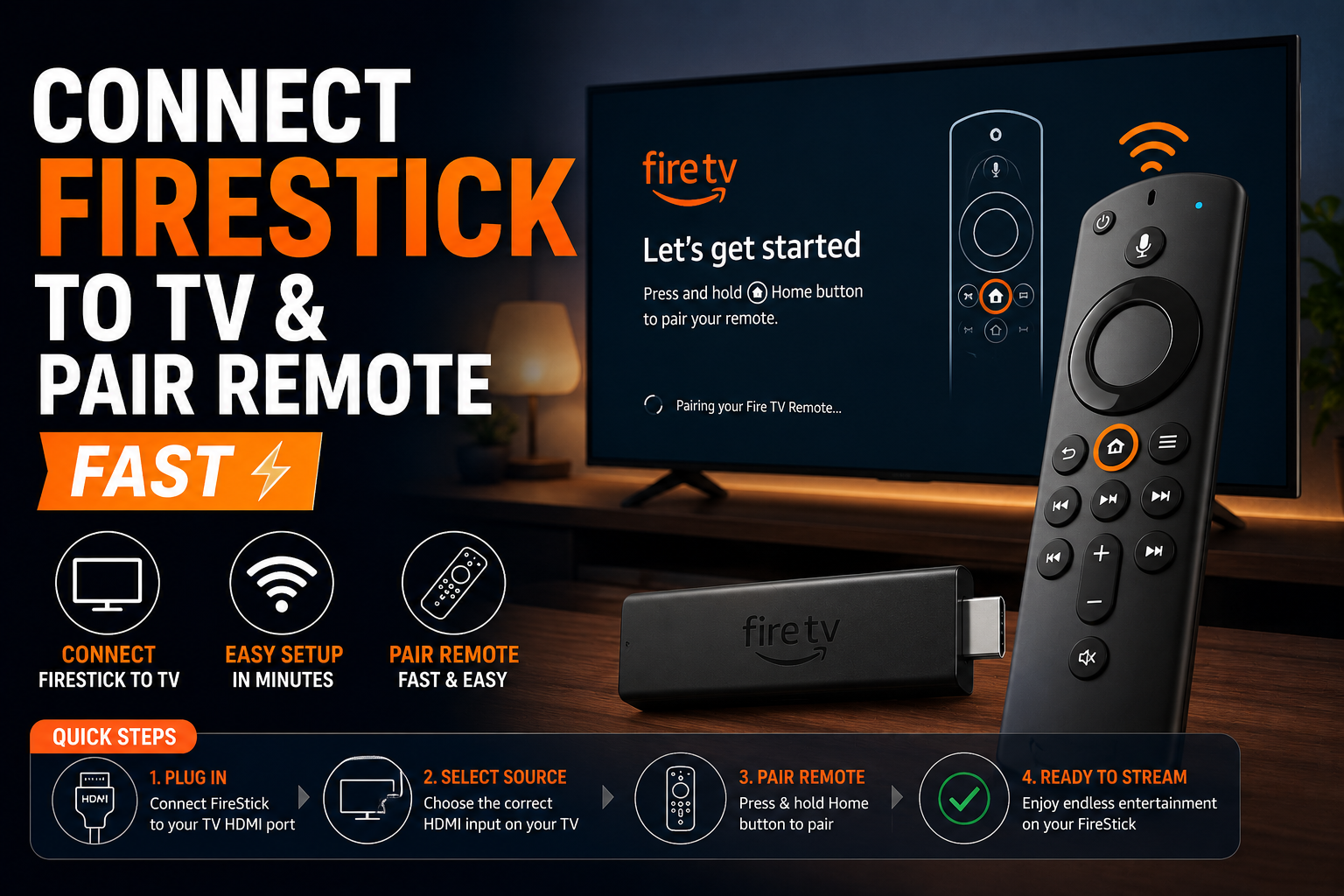
Plug your Fire TV Stick into an available HDMI port on your TV. If space is limited, use the included HDMI extender for a better fit and improved wireless performance. Next, connect the USB power cable to the Fire TV Stick and plug the included power adapter into a wall outlet.
Using the power adapter is recommended, as your TV’s USB port may not provide enough power. Turn on your TV and select the correct HDMI input. When the Fire TV Stick welcome screen appears, your device is connected and ready for setup.
How to Pair FireStick Remote Easily:
Now comes the second important part: pairing your Fire Stick remote. In most cases, the remote pairs automatically when you insert the batteries and turn on the device. But if it does not, here’s what you need to do. Hold the Home button on your remote for about 10 seconds. Keep the remote close to the Fire Stick while doing this. Within a few seconds, the device will detect the remote and pair it automatically.
Once paired, you will see confirmation on your screen and you can start using the remote immediately. If you are using a new or replacement remote, go to settings on your Fire Stick, open Controllers & Bluetooth Devices and add a new remote. Then press and hold the Home button again to connect it.
First-Time Setup After Connecting FireStick:
Once you complete the connection and remote pairing, your Fire Stick will guide you through the setup process. You’ll first select your language, then connect to your Wi-Fi network. Make sure you choose a stable and fast internet connection because streaming quality depends on it.
After that, sign in with your Amazon account. If you don’t have one, you can create it quickly. The device may update its software, let it finish for better performance. Once everything is done, you’ll land on the home screen. At this point, your Fire Stick is fully ready to use.
Turn Your FireStick into a Streaming Powerhouse
Connecting your device is just the beginning. The real value comes when you use it with the right streaming service. Most users today are moving towards IPTV-based streaming because it offers:
- Thousands of live TV channels
- Movies and series in one place
- Sports, news, and international content
- HD and 4K quality streaming
Instead of switching between apps, a good IPTV subscription gives you everything in one interface. This is where your Fire Stick truly becomes powerful. If your goal is to replace cable TV and get more content at a lower cost, then setting up IPTV after connecting FireStick to TV is the smartest move.
Common Problems & Quick Fixes
Even though the process is simple, sometimes small issues can happen. If your Fire Stick screen is not showing, double-check the HDMI input. Try another port if needed. If the remote is not pairing, replace the batteries and repeat the pairing process by holding the Home button.
If there is no signal, make sure the power cable is properly connected and use the original adapter. For slow performance, restart the device or clear app cache from settings. Most issues are minor and can be fixed within minutes.
Best Practices for Smooth Streaming
To get the best experience after you connect FireStick to TV, follow a few simple tips. Use a strong internet connection at least 20 Mbps for HD and higher for 4K. Place your Wi-Fi router close to the device or use an extender. Keep your apps updated to avoid bugs and performance issues. Choose a reliable streaming or IPTV service that offers stable servers and high-quality content. These small optimizations make a big difference in your daily viewing experience.
Learning how to connect FireStick to TV & pair remote is simple, but it opens the door to a powerful streaming experience. Within minutes, you can turn your TV into a smart entertainment hub. And when you combine it with the right IPTV or streaming subscription. You unlock unlimited content without high costs. If you are serious about upgrading your viewing experience, this is the first and most important step.
FAQs
Q1. How do I connect FireStick to TV for the first time?
Plug the Fire Stick into an HDMI port, connect the power adapter, switch your TV input and follow the on-screen setup instructions.
Q2. Why is my FireStick remote not pairing?
It’s usually due to battery issues or distance. Replace batteries and hold the Home button for 10 seconds near the device.
Q3. Can I connect FireStick to any TV?
Yes, any TV with an HDMI port supports Fire Stick, including older non-smart TVs.
Q4. How long does the FireStick setup take?
The full process, including pairing and Wi-Fi setup, usually takes 5–10 minutes.
Q5. What should I do after connecting FireStick to TV?
After setup, install streaming or IPTV apps to access live TV, movies and series for the best experience.